
The Broadcast Message feature allows administrators to send an instant message to a managed Android device from the mambo EMM console.
This is useful for announcements, warnings, or important instructions that need to reach the device user immediately.
What does Broadcast Message do?
When a message is sent:
- The device receives a push notification
- The message is shown to the user in real-time
- It can be marked as High Priority
- It does not interrupt the device’s functionality unless configured on the device side
How to send a Broadcast Message
- Log in to the mambo EMM Console
- Go to Management → Devices
- Locate the device you want to message
- In the Actions column, click More (⋯)
- Select Broadcast message
The following window will appear:
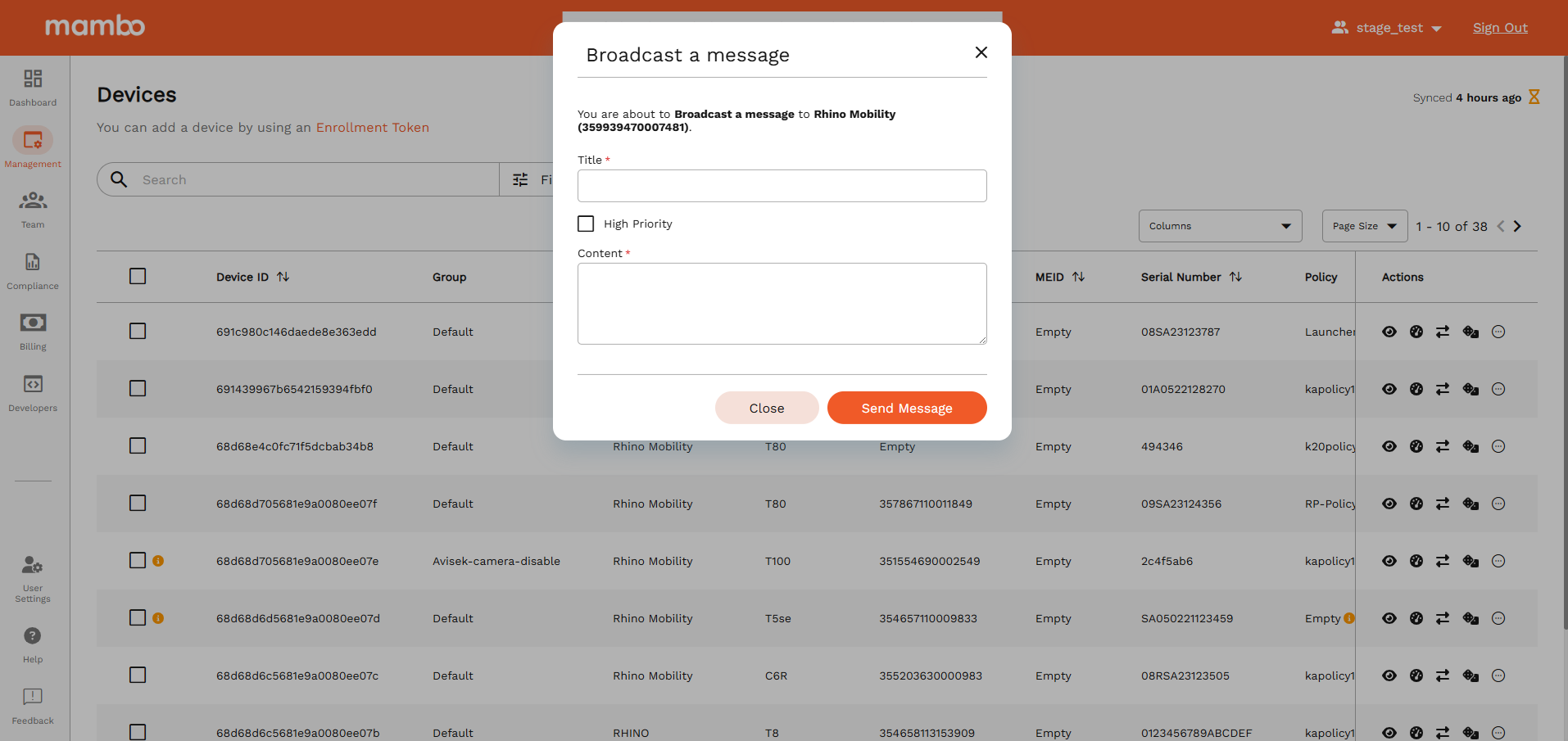
Message Fields Explained
| Field | Description |
|---|---|
| Title | A short heading of the message visible to the user |
| High Priority | Sends the message with increased urgency and visibility |
| Content | The main message text shown to the user |
Example
Title: Important Update
Content: This device will undergo maintenance at 6:00 PM today. Please save your work.
Requirements
To use Broadcast Message, the user must have the Device Command Permission:
- ✅
Can broadcast messages to devices
And must also have permission to view devices.
Notes
- If the device is offline, the message will be delivered once it reconnects to the network.
- The message does not modify any device settings.
What’s Next?
- Learn how to Lock a Device
- Learn how to Reset a Device Password
- Learn how to Use Remote Control on a Device
- Learn how to Wipe Devices